Control your iPhone from your Windows PC.
PhonePort shows your iPhone's screen in a window on a Windows 11 PC. Then you click, drag, scroll and type on the phone with the PC's mouse and keyboard.
The picture comes over AirPlay and the mouse and keyboard go over Bluetooth. You do not need a cable, a Mac or an app on the iPhone.
PhonePort is not in the Microsoft Store yet. When it is, this button opens its Store page.
The 7-day free trial has every feature. After it, PhonePort costs US$29.99 once, with no subscription.
Setup help and troubleshooting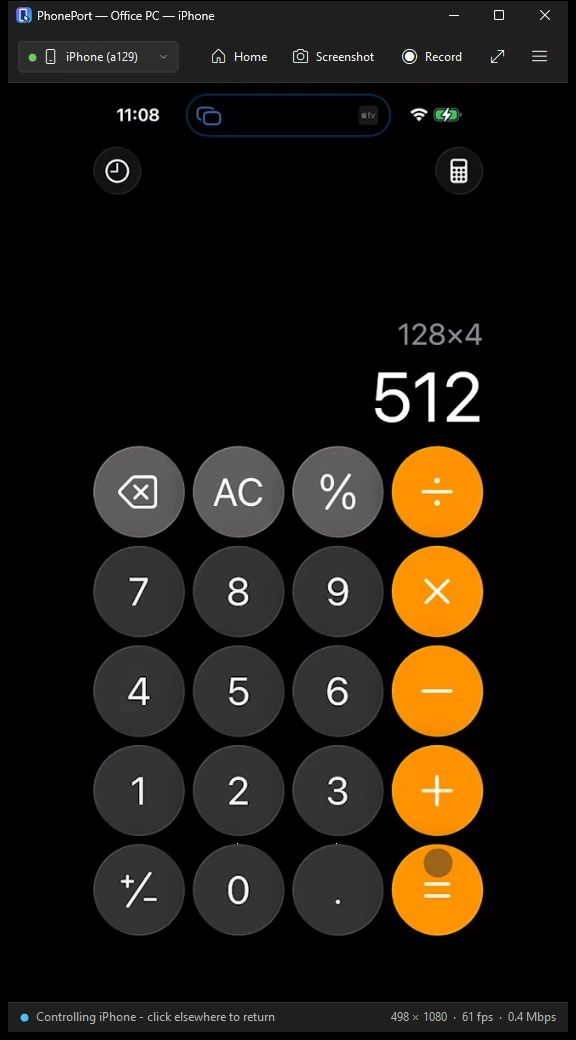
What it does
Use the phone without picking it up.
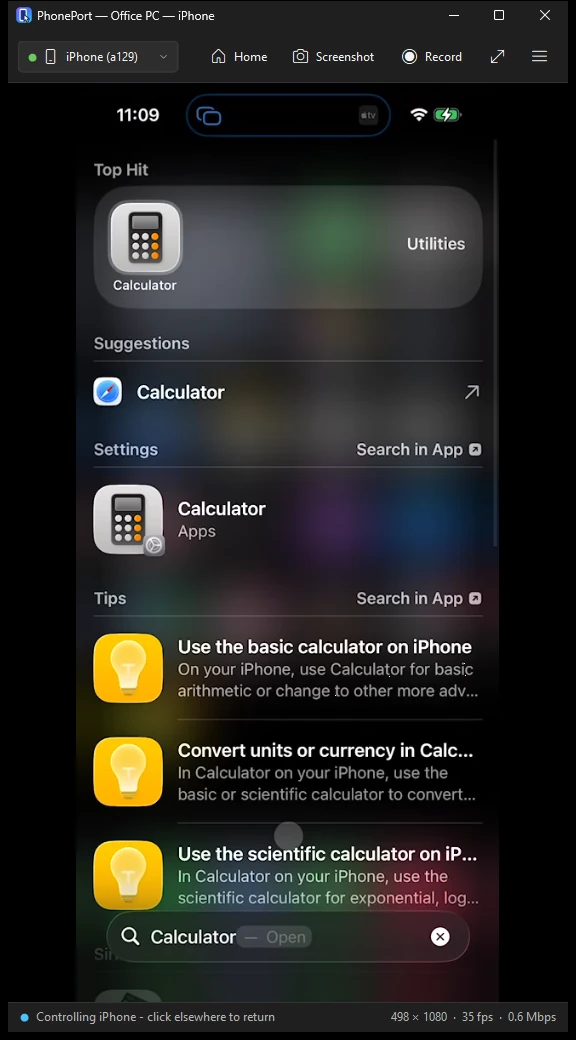
Tap, drag and scroll with the mouse
Click inside the phone picture to tap. Drag to scroll a list, or use the mouse wheel.
Type with the PC keyboard
Click a text field in the picture and type. Ctrl+V pastes text from the PC.
Give the keyboard back in one click
Click any other Windows app and your keyboard and mouse work on the PC again.
Go Home from the toolbar
After a one-time AssistiveTouch setting on the iPhone, the Home button or a right-click goes to the Home Screen.
Screenshots and recordings
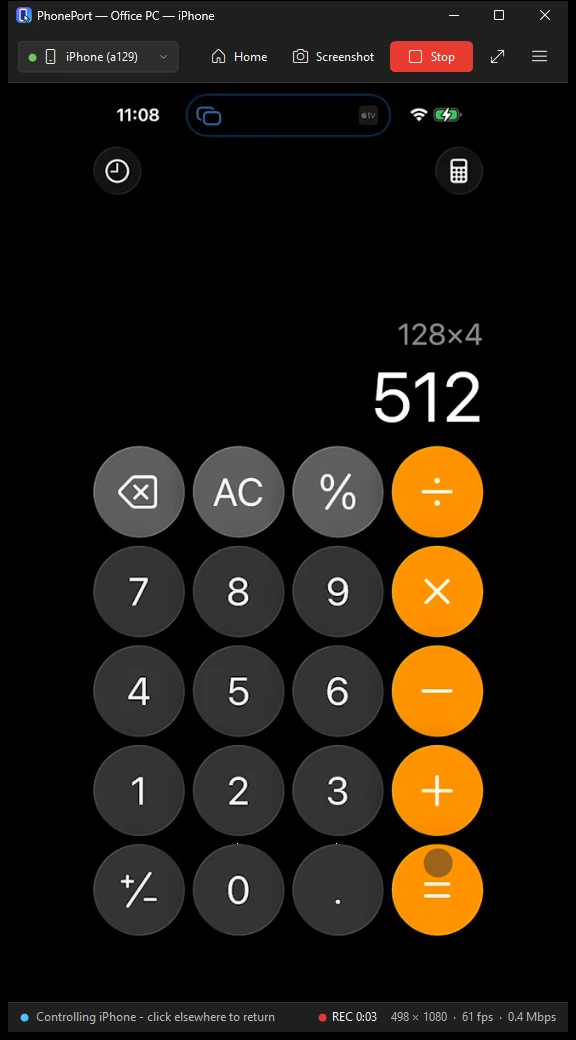
F8 saves a screenshot and copies it to the clipboard. F9 records an MP4 with the phone's sound.
More than one iPhone
PhonePort remembers each iPhone you pair. Control follows whichever one is mirroring.
A setup guide that ticks off each step
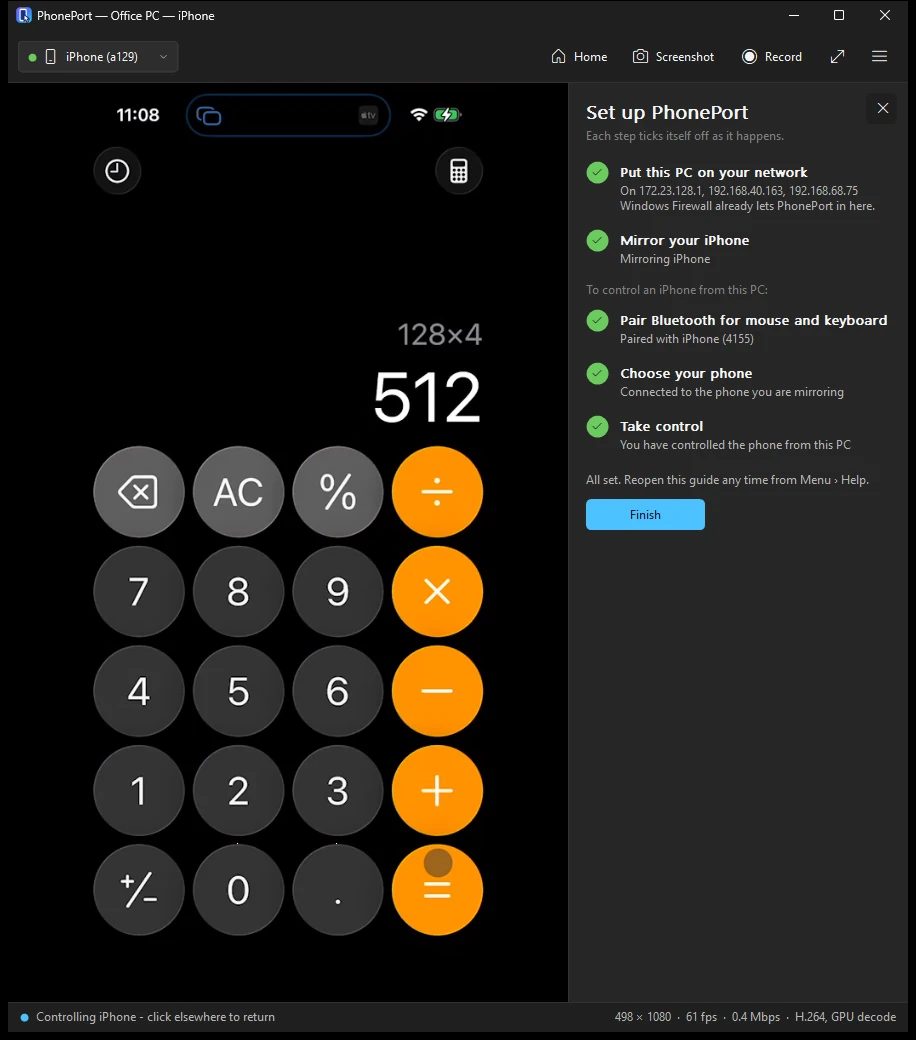
The guide sits beside the picture and marks each step done as soon as PhonePort sees it happen.
iPad and Mac too, to watch
An iPad or a Mac can mirror its screen to PhonePort. Control works with an iPhone.
A command-line helper
iosctl lets scripts and desktop agents take screenshots of the phone, tap, type and go Home.
How it works
Three steps, the first time.
- 1
Mirror
On the iPhone, open Control Center, tap Screen Mirroring and choose your PC. The phone appears in the PhonePort window, with sound.
- 2
Pair
Turn on AssistiveTouch on the iPhone. Pair the PC from the iPhone's Bluetooth settings, then choose the phone in PhonePort.
- 3
Click and type
Click inside the phone picture to tap. Type on the PC keyboard. Click another Windows app to use the PC again.
After the first time, PhonePort remembers the phone, so you start Screen Mirroring and click.
What you need
Check these before you start the trial.
- A 64-bit PC with Windows 11.
- An iPhone on the same network as the PC. Windows must treat that network as Private. If it is set to Public, PhonePort says so and opens the setting to change it.
- For control: a Bluetooth adapter that supports the Bluetooth Low Energy peripheral role, and AssistiveTouch turned on in the iPhone's Accessibility settings.
Mirroring works without that Bluetooth adapter. Control does not. Shortly after it starts, PhonePort checks the adapter and tells you if it cannot act as a keyboard and mouse.
Limits
What it does not do.
We would rather you know before you install.
- It runs on Windows 11 only.
- Bluetooth control has been tested with one adapter model so far.
- Bluetooth control has been tested with iPhones only. An iPad or a Mac can mirror but is not controlled.
- Typing is US ASCII only: letters, digits, punctuation, Enter, Backspace, Tab and the arrow keys. It does not type other languages or other Unicode text, and it does not pass on keyboard shortcuts.
- Some inputs are missed. The status bar tells you when an input was not sent.
- The iPhone's Calculator ignores digits typed on the PC keyboard. Tap its keys with the mouse instead.
- It does not play videos that an app sends with its cast button. Only screen mirroring works.
- One PhonePort runs at a time.
- The window and the setup guide are in English. Display scaling was checked at 100 and 125 percent only.
- H.265 video was checked with a test clip, not yet with an iPhone.
- Windows N editions need the Media Feature Pack to record.
Price and trial
Try every feature for 7 days.
- The Microsoft Store runs the 7-day free trial, and the trial has every feature.
- After it, PhonePort is a one-time purchase from the Store: US$29.99 in the US. Other markets show their own price in the Store. There is no subscription.
- If the trial ends while PhonePort is open, mirroring and Bluetooth control turn off and a panel offers the purchase. Buying from it turns them back on without a restart.
- You pay through the Microsoft Store with your Microsoft account, and Microsoft handles the payment and any refund. To use PhonePort on another PC, install it from the Store's Library with the same account.
PhonePort
US$29.99once, in the US
The 7-day free trial has every feature. After it, PhonePort costs US$29.99 once, with no subscription.
PhonePort is not in the Microsoft Store yet. When it is, this button opens its Store page.
Questions
Before you install.
Does it need an app on the iPhone?
No. The picture comes over AirPlay, which is built into the iPhone. The control comes over Bluetooth, through the iPhone's AssistiveTouch setting.
Why does it need a particular Bluetooth adapter?
To act as a mouse and keyboard, the PC's adapter has to support the Bluetooth Low Energy peripheral role. Not every adapter does. If yours does not, PhonePort says so and mirroring still works.
Does it work on Windows 10?
No. It is for Windows 11.
Can I control an iPad or a Mac?
No. They can mirror to PhonePort, but Bluetooth control has been tested with iPhones only.
What happens when the trial ends?
Mirroring and Bluetooth control turn off until you buy PhonePort. A panel in the app has a Buy in Microsoft Store button, and buying there turns them back on without a restart. Screenshots and recordings you saved stay where they are.
Can I get a refund?
Microsoft sells PhonePort and decides refunds under its own policy. If something is not working, write to us first at guru@graniteai.co. We would rather fix it.
Where do my screenshots and recordings go?
Pictures\PhonePort and Videos\PhonePort, on your PC.
What does PhonePort do with my data?
It sends nothing to us. The picture, your clicks and your typing stay between your PC and your iPhone. It goes online only to ask Windows for its Store license. Programs you run under your Windows account can read the mirrored picture through a local pipe the Store version turns on.
Need help?
Setup steps, short how-to guides and fixes for common problems are on the PhonePort help page.
Or write to guru@graniteai.co
AirPlay, iPhone, iPad and Mac are trademarks of Apple Inc. PhonePort is not affiliated with or endorsed by Apple. PhonePort is published by GraniteAi, LLC.