Getting started

Before you begin.

What you need

  • A 64-bit PC with Windows 11.
  • An iPhone on the same network as the PC. Windows must treat that network as Private.
  • To control the iPhone: a Bluetooth adapter that supports the Bluetooth Low Energy peripheral role, and AssistiveTouch turned on on the iPhone.

Mirroring works without that Bluetooth adapter. Control does not.

Install from the Microsoft Store

PhonePort is not in the Microsoft Store yet. These steps apply once it is.

  1. 1Open PhonePort in the Microsoft Store and choose Free trial. The trial has every feature for 7 days.
  2. 2When it has installed, open PhonePort from the Start menu.
  3. 3The setup guide opens beside the picture the first time. Menu > Help > Setup guide brings it back.
Coming soon to the Microsoft Store

PhonePort is not in the Microsoft Store yet. When it is, this button opens its Store page.

Set up in five steps

These are the steps of the setup guide, in its order. Each one ticks itself off when PhonePort sees it happen.

  1. 1

    Put this PC on your network

    Connect the PC to the same Wi-Fi or wired network as your iPhone. If Windows treats the network as Public, PhonePort says so. Click Open network settings, open the network's properties and set Network profile type to Private network, if it is a network you trust.

  2. 2

    Mirror your iPhone

    On the iPhone, open Control Center, tap Screen Mirroring and choose the name PhonePort shows. Unless you renamed it, that is your PC's name. The phone's screen appears with its sound.

  3. 3

    Pair Bluetooth for mouse and keyboard

    On the iPhone, turn on Settings > Accessibility > Touch > AssistiveTouch. Click Pair Bluetooth in PhonePort. Then on the iPhone open Settings > Bluetooth and tap this PC under Other Devices.

  4. 4

    Choose your phone

    Click the phone button at the left of the toolbar and choose the iPhone you are mirroring. Wait for its dot to turn green. You choose each phone once.

  5. 5

    Take control

    Click a button in the phone picture, then type. Click any other window to give the keyboard back to Windows.

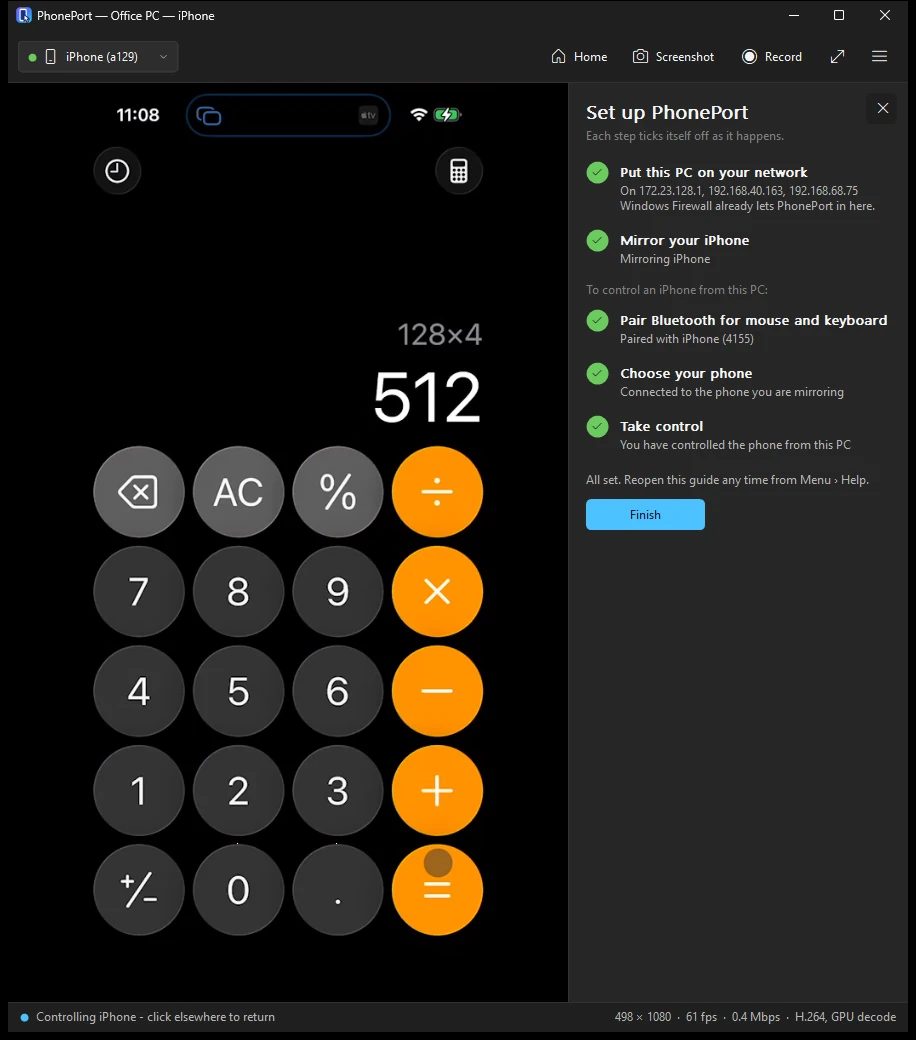
The PhonePort window with the setup guide open beside the mirrored iPhone. All five steps are ticked: Put this PC on your network, Mirror your iPhone, Pair Bluetooth for mouse and keyboard, Choose your phone, Take control.
The setup guide beside the picture. Each step ticks itself off as it happens.

How-to guides

One task at a time.

Mirror an iPhone

  1. 1Put the iPhone and the PC on the same network, and open PhonePort.
  2. 2The window shows "Ready to mirror" and the name to look for.
  3. 3On the iPhone, open Control Center and tap Screen Mirroring.
  4. 4Choose the name PhonePort shows. The phone's screen and sound appear in the window.
  • An iPad or a Mac mirrors the same way, from Screen Mirroring in its Control Center. They can be watched, not controlled.
  • A device that starts Screen Mirroring takes over from the one on screen.
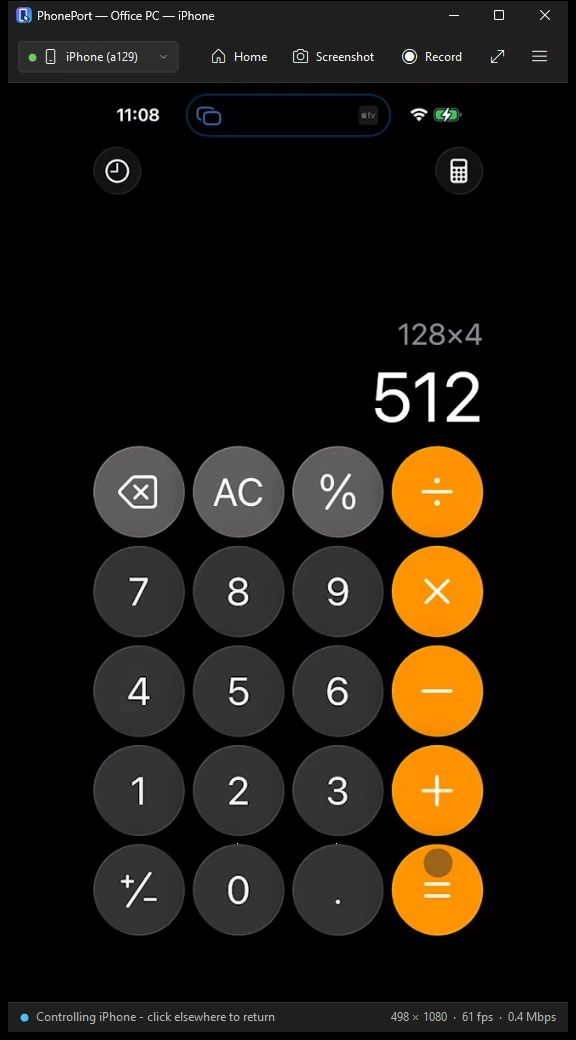
The PhonePort window on a Windows PC showing an iPhone running Calculator, with 128 times 4 equals 512 on screen. The status bar reads "Controlling iPhone - click elsewhere to return".
The iPhone's Calculator, tapped from the PC with the mouse. The status bar says the PC is controlling the iPhone.

Pair Bluetooth and control the phone

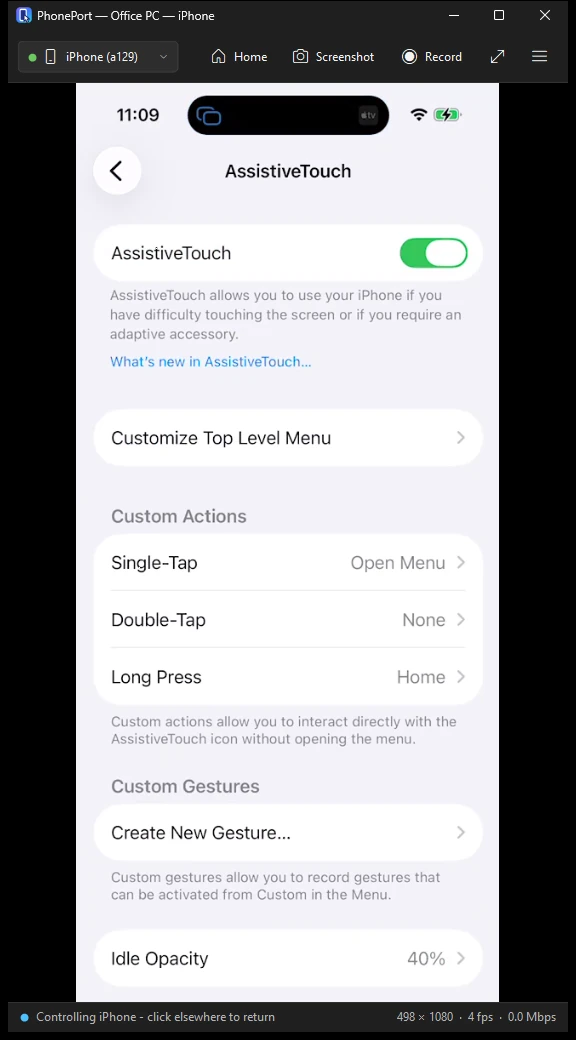
  1. 1On the iPhone, turn on Settings > Accessibility > Touch > AssistiveTouch.
  2. 2In PhonePort, click the phone button at the left of the toolbar. It reads Pair Bluetooth until a phone is paired.
  3. 3On the iPhone, open the main Settings > Bluetooth screen and tap the PC under Other Devices. Pair from this screen, not only from the AssistiveTouch device list.
  4. 4Click the phone button again and choose the iPhone you are mirroring. Wait for its dot to turn green.
  5. 5Click inside the phone picture to tap. Drag with the left button held to scroll a list, or use the mouse wheel.
  6. 6Click another Windows app to use the PC again.
  • To stop control, choose Disconnect in the phone button's menu.
  • The PC's Bluetooth name can differ from the name it shows in Screen Mirroring.
The iPhone's AssistiveTouch settings page seen in the PhonePort window, with the AssistiveTouch switch turned on.
AssistiveTouch turned on in the iPhone's settings. The pointer needs it.

Set up the Home button

Pair Bluetooth first. This is a one-time setting on the iPhone.

  1. 1On the iPhone, open Settings > Accessibility > Touch > AssistiveTouch > Devices, then your PC, then Customize Additional Buttons.
  2. 2Click Home in PhonePort's toolbar.
  3. 3On the iPhone, assign the detected Button 2 to Home.
  • From then on, the Home button or a right-click inside the phone picture goes to the Home Screen.

Type and paste

  1. 1Click a text field in the phone picture. With no field selected, Space and Enter press whatever control is selected on the phone.
  2. 2Type on the PC keyboard. Letters, digits, punctuation, Enter, Backspace, Tab and the arrow keys are sent.
  3. 3To paste, copy text on the PC, click the phone picture and press Ctrl+V. PhonePort types up to 1,024 characters, including tabs and new lines.
  • Typing is US ASCII only. Other languages, other Unicode text and keyboard shortcuts are not sent.
  • PhonePort reads the clipboard only when you press Ctrl+V with the phone picture selected.
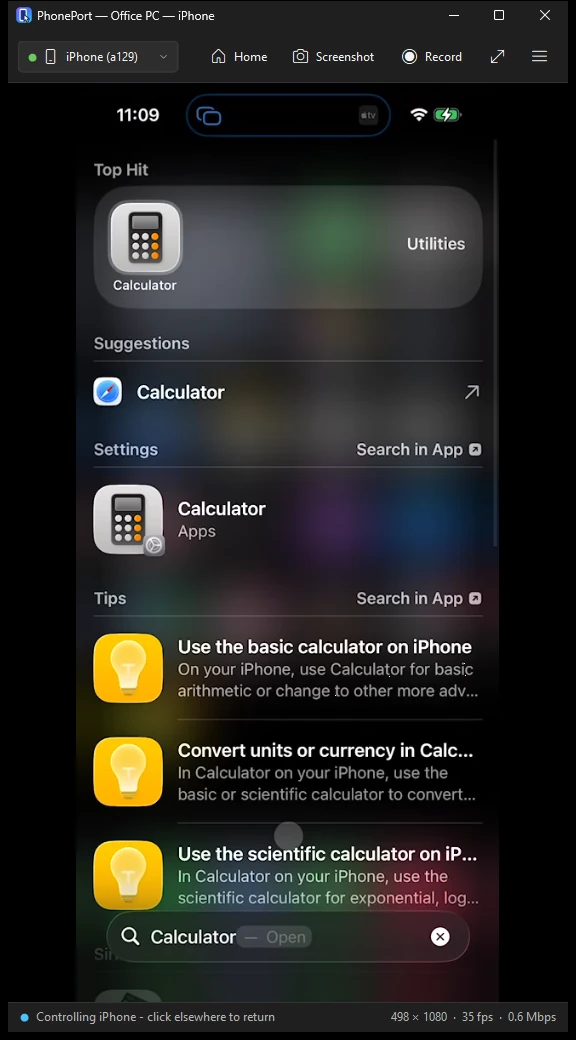
The PhonePort window showing the iPhone's Search with the word Calculator typed in the search field and the results below it.
A search on the iPhone, typed with the PC keyboard.

Take a screenshot or record

  1. 1Start Screen Mirroring so the phone is on screen.
  2. 2Press F8, or click Screenshot. PhonePort saves a PNG at the phone's own size in Pictures\PhonePort and copies it to the clipboard.
  3. 3Press F9, or click Record, to start a recording. Press it again to stop. The MP4, with the phone's sound, is saved in Videos\PhonePort.
  4. 4Open either folder from Menu > Capture > Open screenshots folder or Open recordings folder.
  • A recording is finished only when you stop it or close PhonePort normally.
  • A new file starts if the phone rotates.
  • Windows N editions need the Media Feature Pack to record.
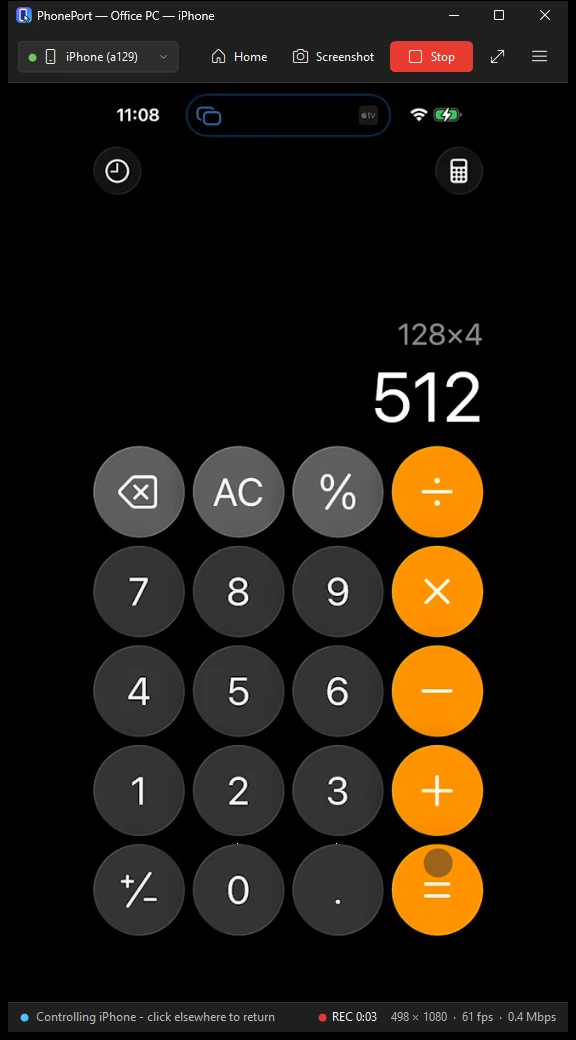
The PhonePort window while recording. The Record button has turned into a red Stop button and the status bar shows REC 0:03.
Recording. The Record button reads Stop and the status bar counts the time.

Full screen and always on top

  1. 1Press F11 or Alt+Enter, or click Full screen. The buttons and the status bar hide.
  2. 2Press Escape to leave full screen.
  3. 3To keep the window above other windows, open Menu > View > Always on top.
  4. 4To size the window to the phone picture, choose Menu > View > Fit window to video.
  • The Menu button, the Alt key and a right-click outside the phone picture all open the menu.

Use more than one iPhone

  1. 1Pair each iPhone as in the pairing guide.
  2. 2Mirror each one once and choose it from the phone button. PhonePort remembers which phone belongs to which mirror.
  3. 3To switch, start Screen Mirroring on the other iPhone. It takes over the picture, and control follows it.
  • While the mirroring phone's Bluetooth connects, the phone button reads "Waiting for iPhone…".
  • In the phone list, a phone chosen for another mirror is marked "(a different iPhone)". If every phone is marked that way, the button reads "Pair this iPhone": pair the phone on screen first.
  • An iPhone that joins a different network counts as a new phone and needs choosing once more.

Use iosctl from a terminal

iosctl is a command-line helper for scripts and desktop agents. You do not need it to use PhonePort.

  1. 1Start PhonePort from the Start menu, pair the phone and set up the Home button.
  2. 2Open a terminal. The Store install puts iosctl on the command path, so it works from any folder.
  3. 3Run iosctl --help for the list of commands, and iosctl --doctor to check the setup. --doctor sends no input to the phone.
iosctl --help
iosctl --doctor
iosctl --list
  • Commands take screenshots of the phone, tap, type, drag and go Home. Typing follows the same US ASCII rules.
  • Use the input commands only where your agent environment allows desktop input.

Troubleshooting

Each problem with its cause and its fix.

The iPhone does not list the PC in Screen Mirroring

Cause
Windows treats the network as Public, the iPhone and the PC are on different networks, or the network stops devices from reaching each other. The Store version sets up Windows Firewall for private networks only, and Windows 11 marks new Wi-Fi networks as Public.
Fix
  1. 1Put the iPhone and the PC on the same network.
  2. 2If PhonePort says the network is Public, click Open network settings, open the network's properties and set Network profile type to Private network, if you trust the network.
  3. 3Only one PhonePort runs at a time. Look for an open PhonePort window before you start another.
  4. 4PhonePort follows network changes and should appear within a few seconds of the network coming back. If it still does not, choose Menu > Receiver > Restart AirPlay service.

PhonePort says the Bluetooth adapter cannot control the phone

PhonePort says
"This PC's Bluetooth adapter cannot act as a keyboard and mouse. Mirroring still works." or "No Bluetooth adapter found. Mirroring works; phone control needs one."
Cause
To act as a keyboard and mouse, the adapter must support the Bluetooth Low Energy peripheral role. Some adapters do not. The second message means Windows found no Bluetooth adapter, or Bluetooth is turned off.
Fix
  1. 1For "No Bluetooth adapter found", turn Bluetooth on in Windows, or add a Bluetooth adapter.
  2. 2For "cannot act as a keyboard and mouse", use a Bluetooth adapter that supports the peripheral role.
  3. 3Mirroring, screenshots and recording keep working in the meantime.

The pointer does not move, or taps do not land

PhonePort says
"The selected iPhone is asleep. Wake it, or choose the phone that is on screen." Or: "Input was canceled before it was sent. Click the phone picture to try again." Or: "Input took too long to send and was dropped. Click the phone picture to try again."
Cause
AssistiveTouch is off, the phone was paired only from the AssistiveTouch device list, the iPhone is asleep, or PhonePort has a different paired iPhone selected than the one on screen.
Fix
  1. 1Turn on Settings > Accessibility > Touch > AssistiveTouch on the iPhone.
  2. 2Pair the PC from the iPhone's main Settings > Bluetooth screen.
  3. 3Open the phone button's menu and choose the phone that is mirroring. Wait for the green dot. PhonePort remembers the choice.
  4. 4Wake the iPhone and click inside the picture again.
  5. 5If control never comes back, choose Disconnect in the phone button's menu and pair again. If that fails, remove the PC from the iPhone's Bluetooth settings and pair it fresh.

Typing produces nothing, or the wrong characters

PhonePort says
"Paste rejected: use up to 1,024 US ASCII characters, tabs or newlines."
Cause
No text field is selected on the phone, or the text uses characters outside US ASCII. PhonePort types letters, digits, punctuation, Enter, Backspace, Tab and the arrow keys only.
Fix
  1. 1Click a text field in the phone picture first.
  2. 2Type or paste plain US ASCII text. Accented letters, other alphabets, emoji and keyboard shortcuts are not sent.
  3. 3Keep a paste to 1,024 characters or fewer.
  4. 4The iPhone's Calculator ignores digits typed on the PC keyboard. Tap its keys with the mouse instead.

The picture works but there is no sound

Cause
PhonePort plays the phone's sound on the Windows default playback device. If that device is muted, turned down or not the one you are listening to, you hear nothing.
Fix
  1. 1Check the Windows default playback device and its volume. PhonePort moves the sound when the default device changes, for example when you plug in headphones.
  2. 2Turn up the volume on the iPhone.
  3. 3If there is still no sound, send us the log. It records when sound starts arriving from the phone and how loud it is.

The picture went black after a graphics driver update or reset

PhonePort says
"The graphics device was reset, so mirroring stopped. Start Screen Mirroring again on your device."
Cause
When the graphics device is reset or removed, for example by a driver update, the mirroring session ends and PhonePort rebuilds its video.
Fix
  1. 1On the iPhone, start Screen Mirroring again and choose the PC.

PhonePort still says trial after you bought it

Cause
Windows has not refreshed the app's Store license yet, or the Store is signed in with a different Microsoft account from the one that bought it.
Fix
  1. 1Sign in to the Microsoft Store with the account that bought PhonePort.
  2. 2Check your order history on your Microsoft account to confirm the purchase went through.
  3. 3Update PhonePort from the Store's Library.
  4. 4If you bought on the Store page while PhonePort was open, close PhonePort completely and start it again. Buying from PhonePort's own panel needs no restart.
  5. 5Keep the PC online so Windows can refresh the license.
  6. 6If the order shows in your history and the app still says trial, email guru@graniteai.co with the log and what the app shows. Do not send card or payment details.

The trial ended

PhonePort says
"Your free trial has ended"
Cause
The 7-day trial is over. Mirroring and Bluetooth control stay off until PhonePort is bought.
Fix
  1. 1Click Buy in Microsoft Store on the panel. Buying there turns mirroring and control back on without a restart.
  2. 2If the trial had already ended, Windows may offer the purchase when you start PhonePort.
  3. 3If PhonePort runs as administrator, Buy is hidden. Start it without administrator rights to buy.
  4. 4Screenshots and recordings you saved stay in your Pictures and Videos folders.

Where the log and crash reports are, and how to send them

Cause
PhonePort writes a log, debug.txt, and saves a crash report if it stops unexpectedly. It keeps the five newest crash reports. Nothing is uploaded automatically.
Fix
  1. 1In PhonePort, choose Menu > Receiver > Open log folder.
  2. 2Attach debug.txt. If PhonePort stopped unexpectedly, also attach the newest .dmp file from the crashes folder.
  3. 3Email them to guru@graniteai.co with a few lines on what you did and what you saw, your iPhone model and your Windows version.
  4. 4Read the log before you send it. It shows device names, network addresses and file names. A crash report can also hold recently typed text, so send one only if you are comfortable with that.

Trial, purchase and refunds

Microsoft runs the Store side.

Trial and price

The Microsoft Store runs a 7-day free trial with every feature.

After it, PhonePort is a one-time purchase: US$29.99 in the US. Other markets show their own price in the Store. There is no subscription.

Microsoft takes the payment, so we do not receive your card or payment details.

Use it on another PC

The purchase belongs to your Microsoft account. On the other PC, sign in to the Microsoft Store with the same account, open Library and install PhonePort.

Refunds

Microsoft, not GraniteAi, decides and issues refunds for Store purchases, under Microsoft's own refund policy. We cannot refund a Store purchase ourselves.

Microsoft's pages, read on 13 November 2026, say a refund request is made from the order history on your Microsoft account where online requests are available, and that digital items such as apps are generally not refundable unless the offer or the law that applies to you says otherwise. Check Microsoft's pages before you rely on this summary.

If PhonePort is not working, write to guru@graniteai.co first. Many problems are setup problems we can fix. Writing to us does not stop you from asking Microsoft for a refund.

Contact

Write to us.

Email us with what you did, what you saw, your iPhone model and your Windows version. Attach the log if you can.

guru@graniteai.co

AirPlay, iPhone, iPad and Mac are trademarks of Apple Inc. PhonePort is not affiliated with or endorsed by Apple. PhonePort is published by GraniteAi, LLC.

PhonePort privacy policyPhonePort help